

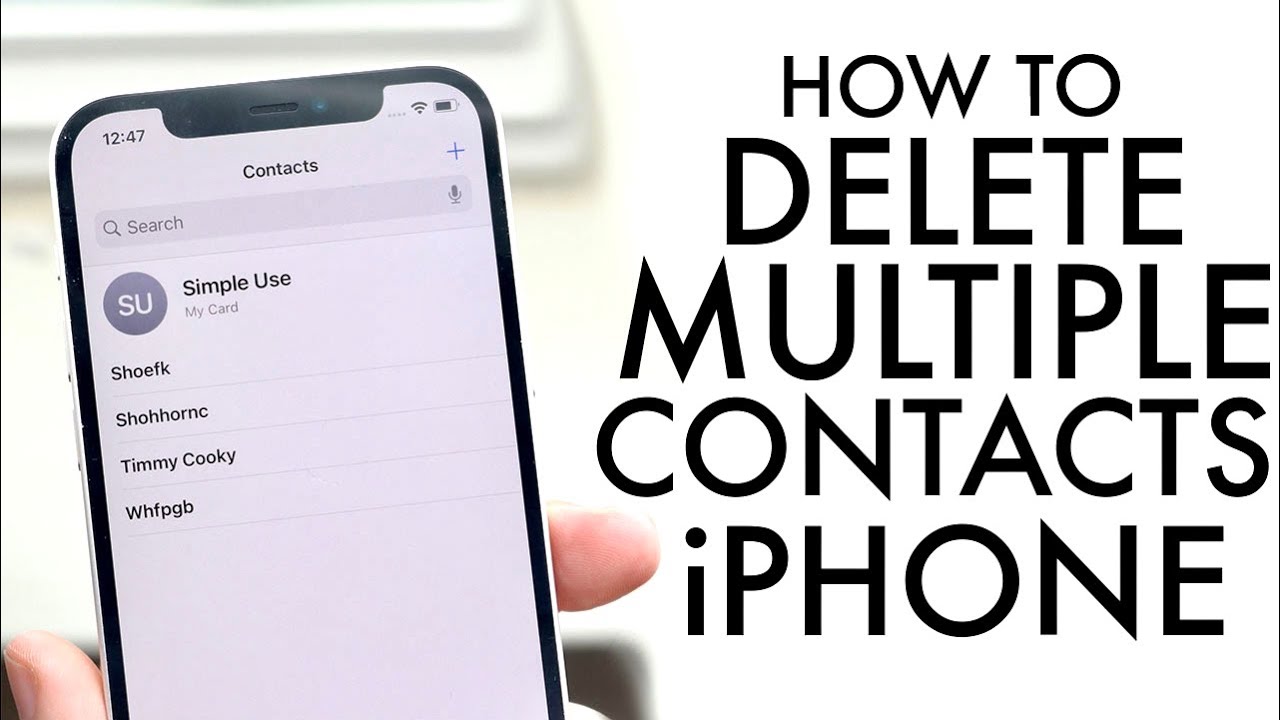
How to Delete Multiple Contacts on iPhone: Collecting and storing outdated information can be challenging. Well, no one prefers keeping old data and information. Regardless, the iPhone has a history of saving unnecessary information for a long period of time. If this is something you’re dealing with, you’re probably wondering how to delete multiple contacts on iPhone.
People waste a lot of their time by deleting their contacts one by one, but is it necessary? No! With the help of easy steps, you can delete multiple contacts on iPhone in a single time. Now, keeping information about old work colleagues or other unimportant data is not necessary. It takes some skill to delete numerous contacts at once on an iPhone. Since Contacts on iPhone doesn’t have a multi-delete option, deleting contacts from your device can take a while.
I am here to provide you with the answer to your question of how to delete multiple contacts on iPhone within a few steps. Now, you don’t need to waste a lot of your time. Take your iPhone in your hands and follow these steps to improve the productivity and storage of your iPhone by deleting multiple contacts.
How to Delete Multiple Contacts on iPhone Using iCloud?
A first way to delete multiple contacts on an iPhone is by using iCloud. By using the web version of iCloud, you can easily select multiple accounts to delete at a single time. If you are using iOS, iCloud changes can be applied to all active Apple devices, including MacBooks.
Here is how to delete multiple contacts on iPhone using iCloud
- First, visit iCloud.com on your device or your mobile phone.
- In the given link enter your Apple ID and password.
- Now, go to the main page of the site and select Contacts.
- Highlight the contacts which you no longer want and delete them by using the Control key on your MacBook.
- Now scroll down and select other contacts to delete.
- Click on the Setting icon on the left side of the display.
- Select the Delete option.
- Now in the confirmation box reconfirm your delete option.
How to Delete Multiple Contacts on iPhone Using Mac?
Here is the second way to answer your question: how to delete multiple contacts on iPhone. The Mac version of the app allows users to select multiple contacts and delete them in one shot.
Steps to get started:
- First go to System Preference and now click on the option iCloud.
- Now by using your credentials you can sign in.
- Sync all your contacts on your Mac.
- Click on the Contact Options on your Mac.
- Delete the Contacts by holding the command option.
- Right click on the tab and click on the Delete Option.
- Click on the Delete Option to remove the selected contacts.
- Now wait for a few minutes until your contacts sync.
- Here are your changes!
How to Delete Multiple Contacts on iPhone by Using Third-party App:
There are many third party apps that are used to delete all the contacts. In case if you are not able to delete your contacts by using internal functions then you can use third party apps.
The steps include:
- Go to the Apple store.
- Search for the third party app.
- You can select a third party app from AppStore such as AnyTrans, Cleaner Pro.
- Open the app.
- Delete contacts + delete multiple contacts.
Wrapping Up
In this context we have provided you the different ways on how to delete multiple contacts on iPhone. By using these three different ways you can easily delete multiple contacts on iPhone. With these clear steps you now no longer have to delete single contacts and waste a lot of your time. Just bookmark these steps and implement it while deleting your contacts.
Frequently Asked Questions:
Q1: how to select all the contacts on your iPhone?
Operating iOS is a complicated task and also there’s a need to understand the shortcut keys for selecting. For selecting all contacts in Mac you have to Press and hold Ctrl and select the contacts you want to delete. As long as you hold down the Ctrl key, you can select multiple contacts.
Q2: Can I delete all Contacts from iPhone at once?
Yes! You can easily get all the contacts from the iPhone at once by using the above mentioned different ways. Bookmark these steps and delete all Contacts at a single time.
Q3: How do you delete multiple Contacts on an iPhone without iCloud?
Yes you can easily delete multiple contacts on iPhone by using third-party websites. Many third-party apps are used to delete all the contacts. You can select third-party apps from AppStore such as AnyTrans, Cleaner Pro, or Delete contacts + delete multiple contacts.